
Mine with your graphics card
In the browser, the graphics card mines Lotus many times faster than the processor. The browser only has to let the page use it: that is WebGPU. Check your browser here; if WebGPU is off, the steps below take two minutes.
Measured on our test laptop (NVIDIA RTX 4080 Laptop GPU, Linux): about 1.8 GH/s with the graphics card, against about 50 MH/s with 16 processor threads, in Chrome, Brave and Firefox alike.
Check my browser
Chrome
Chrome has WebGPU built in. On most computers and phones it is on already; on Linux, not always yet.
Where WebGPU is already on
- Windows, macOS and ChromeOS: on by default since Chrome 113.
- Android: on by default since Chrome 121, on Android 12 or later with an ARM, Qualcomm or Intel graphics chip (Imagination chips: Android 16 and Chrome 139). Samsung phones with an Xclipse chip: not yet.
- Linux: on by default for Intel graphics from the 12th generation (Chrome 144) and for NVIDIA with driver 535.183.01 or later under Wayland (Chrome 147). Other graphics cards, or X11: step 3.
Turn it on
Update Chrome: menu ⋮ > Help > About Google Chrome. It updates itself; press Relaunch. On Android, update Chrome from Google Play: there is nothing else to turn on.
Turn on hardware acceleration: open
chrome://settings/systemand switch on "Use graphics acceleration when available". Press Relaunch.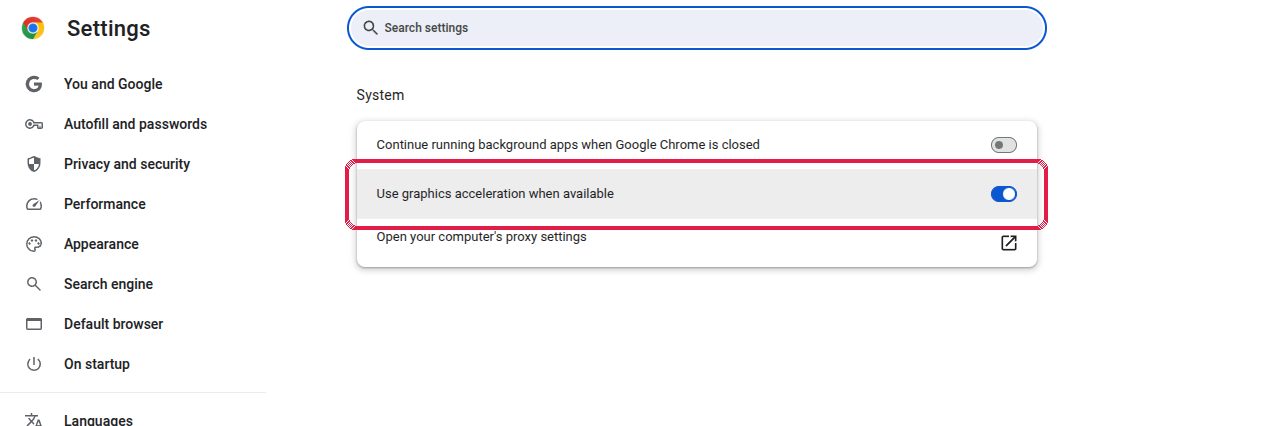
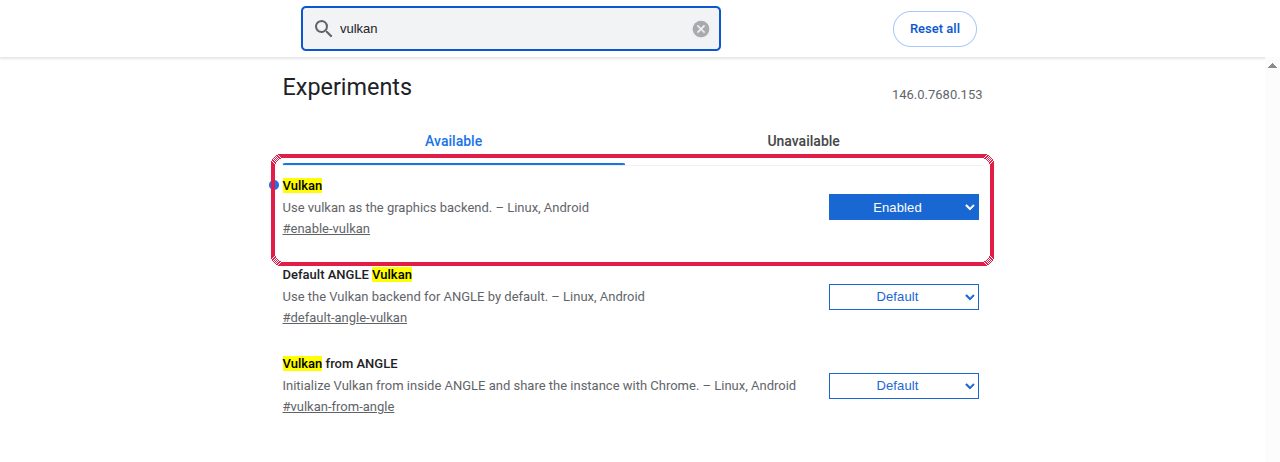
Linux, or if the check still says off: open
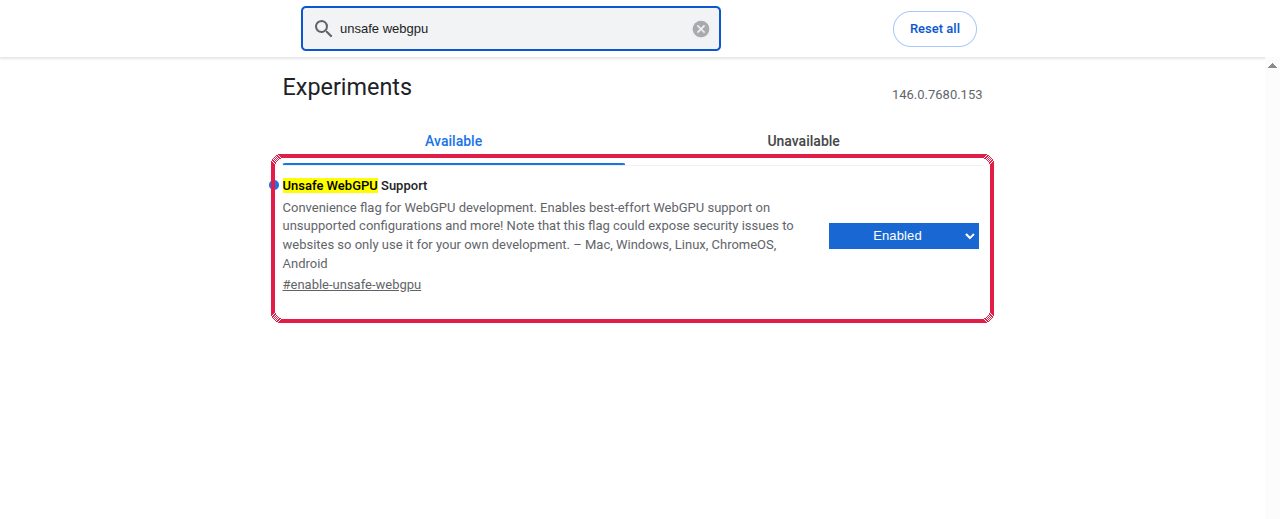
chrome://flags, type Vulkan in the search box and set "Vulkan" to Enabled. Then type Unsafe WebGPU and set "Unsafe WebGPU Support" to Enabled. Press Relaunch.On our test laptop (Chrome 146, NVIDIA), "Vulkan" alone was enough. "Unsafe WebGPU Support" turns WebGPU on for graphics drivers Chrome has not vetted yet, on every site: if the browser becomes unstable, set it back to Default.
Check: open
chrome://gpu. Under "Graphics Feature Status", the WebGPU line must say "Hardware accelerated". Or press "Check again" at the top of this page.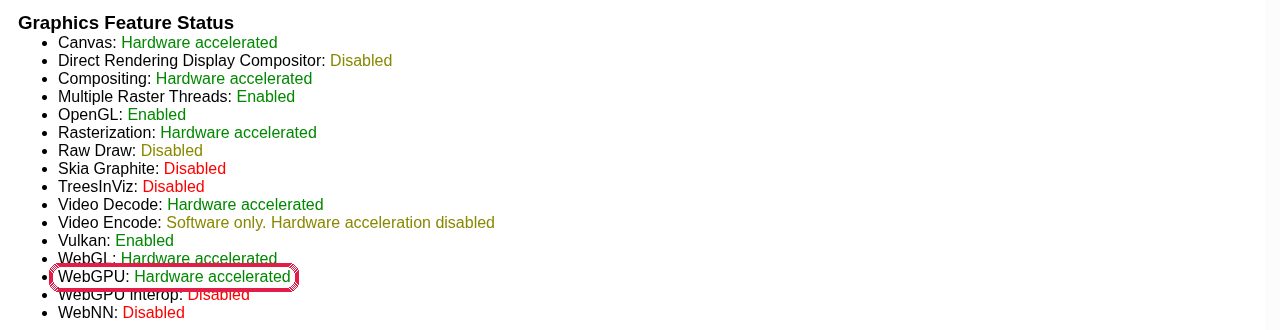


Screenshots taken on Linux; on Windows and macOS the pages look the same.
Brave
Brave is built on Chrome's engine: WebGPU is on where Chrome has it on, once Brave is up to date. The settings have the same names, under brave://.
Where WebGPU is already on
- Windows, macOS and ChromeOS: on by default since Chrome 113.
- Android: Brave for Android uses the same engine. Update it from Google Play and check on this page; if it says off, use Chrome on Android.
- Linux: on by default for Intel graphics from the 12th generation (Chrome 144) and for NVIDIA with driver 535.183.01 or later under Wayland (Chrome 147). Other graphics cards, or X11: step 3.
Turn it on
Update Brave: menu ≡ > About Brave. Press Relaunch.
Turn on hardware acceleration: open
brave://settings/systemand switch on "Use graphics acceleration when available". Press Relaunch.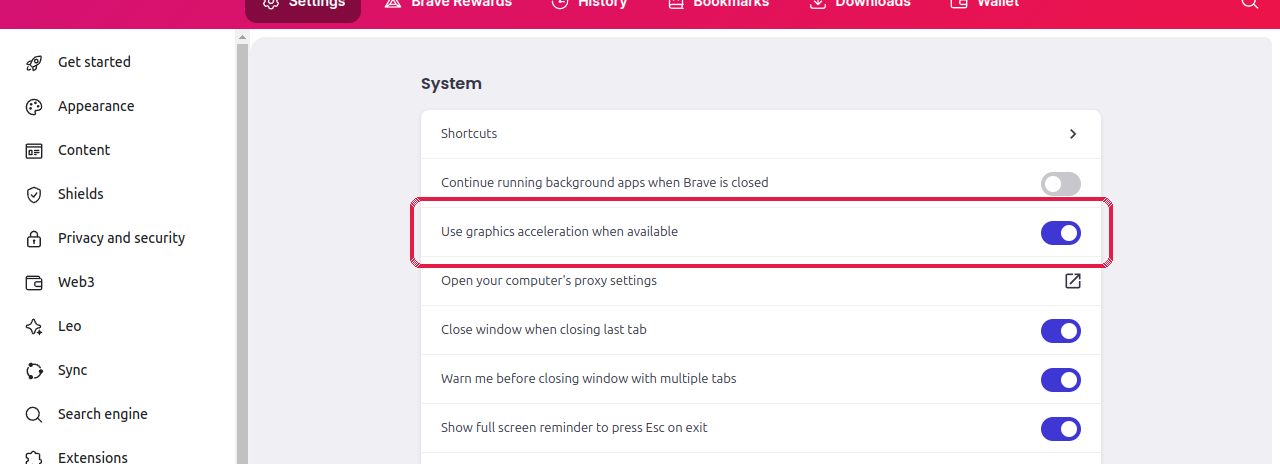
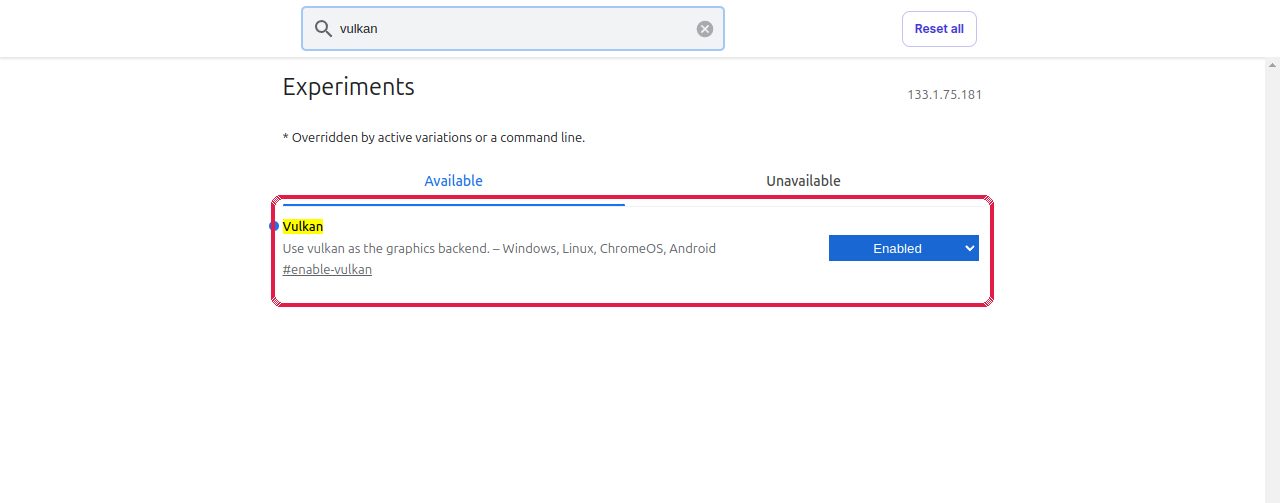
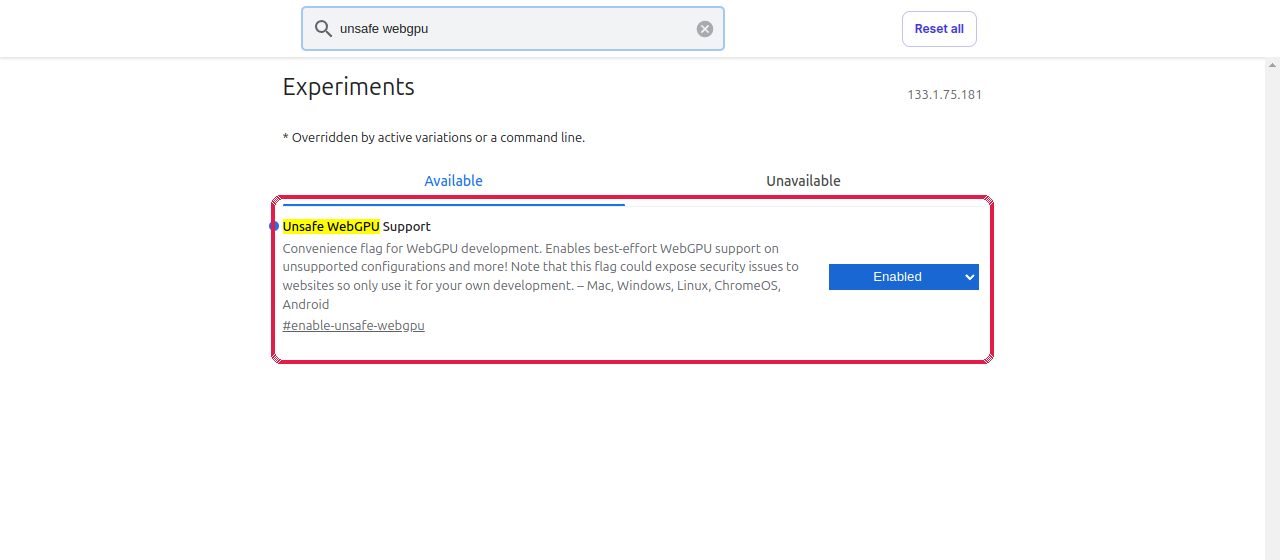
Linux, or if the check still says off: open
brave://flags, set "Vulkan" to Enabled, then "Unsafe WebGPU Support" to Enabled. Press Relaunch.Our test Brave (1.75, on an older Chrome engine, 133) needed both flags on Linux. Brave Shields do not block WebGPU: mining worked with Shields up.
Check: open
brave://gpuand look for "WebGPU: Hardware accelerated". Or press "Check again" at the top of this page.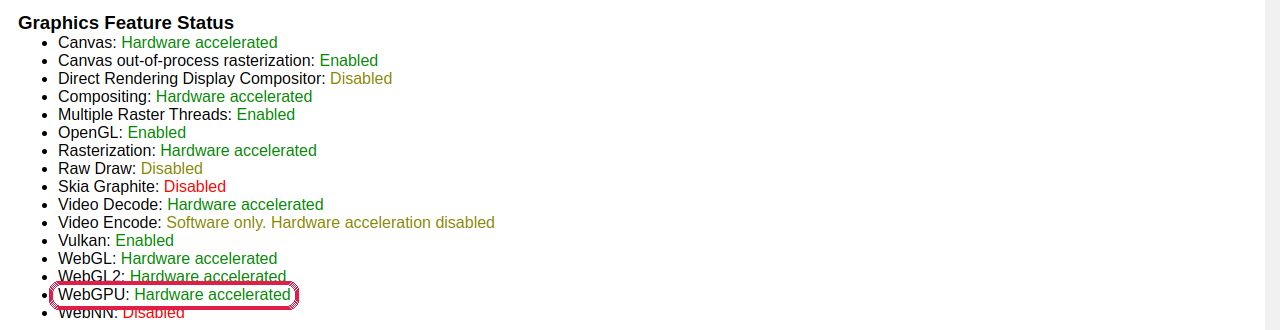


Screenshots taken on Linux; on Windows and macOS the pages look the same.
Firefox
Firefox turns WebGPU on one system at a time. Where it is not on yet, one setting in about:config turns it on.
Where WebGPU is already on
- Windows: on by default since Firefox 141.
- macOS: on by default on Apple silicon Macs (M1 and later) since Firefox 147 (145 on macOS 26). Intel Macs: not yet; step 3 turns it on, as an experiment.
- Linux: not on by default yet in the released Firefox (only in Firefox Nightly). Step 3 turns it on: that is how we mine on our test laptop (Firefox 158, NVIDIA).
- Android: not yet. Firefox Beta and Nightly for Android can try it: in
about:config, setgfx.webgpu.ignore-blocklistto true. Otherwise, use Chrome on Android.
Turn it on
Update Firefox: menu ≡ > Help > About Firefox, then Restart to update Firefox. On Linux, a Firefox from your distribution or the Snap Store updates with the system.
Turn on hardware acceleration: open Settings (
about:preferences) and type hardware in "Find in Settings": the Performance group shows (under Tabs and browsing; General in older versions). Untick "Use recommended performance settings", then tick "Use hardware acceleration when available". Restart Firefox.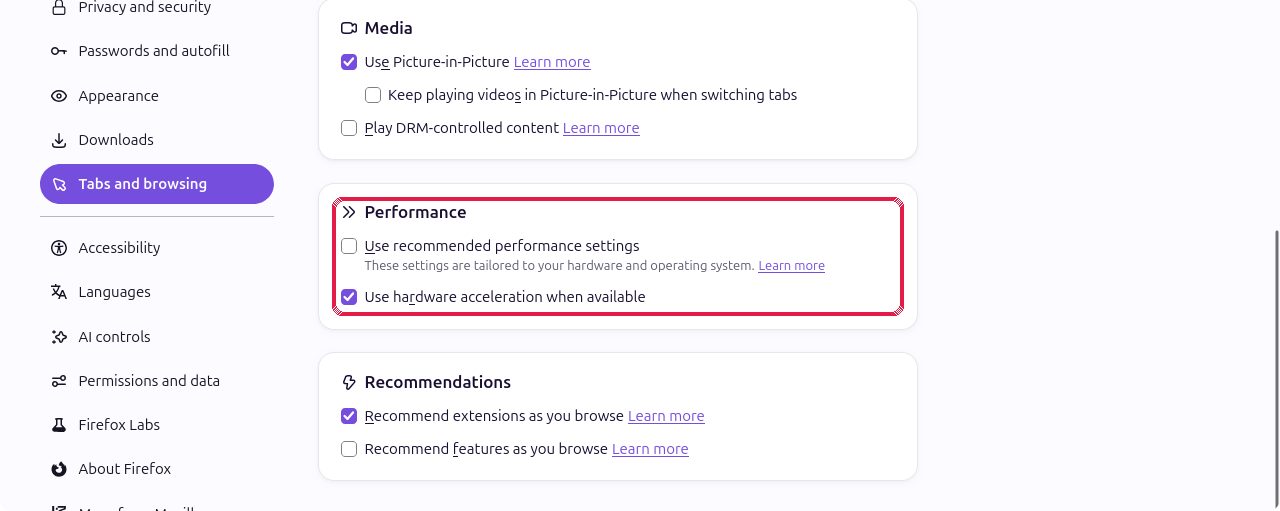
Linux, Intel Macs, or if the check says off: type
about:configin the address bar and accept the warning. Search fordom.webgpu.enabledand press its toggle button so that it says true. Restart Firefox.If the check then says WebGPU cannot use your graphics card, also set
gfx.webgpu.ignore-blocklistto true. To undo, press the reset arrow next to each setting.
Check: press "Check again" at the top of this page. Firefox does not tell the page the name of the graphics card: "Ready" is enough.


Screenshots taken on Linux; on Windows and macOS the pages look the same.
Once it works
- The Mine now! page says which engine works: "Mining on the graphics card" or "Mining on the processor". It picks the faster one by itself, and falls back to the processor if the graphics card stops answering.
- Options > Graphics card intensity: lower it if the screen stutters or the fans get loud. It applies at once.
- Laptops: mine with the charger plugged in. On battery, the graphics card slows down to save power.
- The tab can stay in the background. Stop mining, or close the tab, and the graphics card is free again at once.
- One tab is enough: a second tab shares the same graphics card and earns nothing more.
Tested in November 2026 on Linux (Ubuntu, Wayland) with an NVIDIA RTX 4080 Laptop GPU: Chrome 146, Brave 1.75 (engine 133) and Firefox 158, shares accepted by the pool in all three. The Windows, macOS and Android lines come from the browsers' published status.